Build or change a study with the agent
The agent is an AI model that works on a study in the admin. It builds a study from its paper CRF, and changes a study from a request in your own words. It works on the study’s draft and never publishes: you review what it changed, then you publish it.
Who can do this: System Administrator. A Clinical Research Administrator does not see the agent.
Before you start, a System Administrator must add an AI provider and its key on the AI page of the admin. The agent sends the study’s design, your messages and your documents to the provider of the model that it uses. It sends no subject data, and none of the study’s users, sponsors, CROs or sites.
Build a new study
Section titled “Build a new study”-
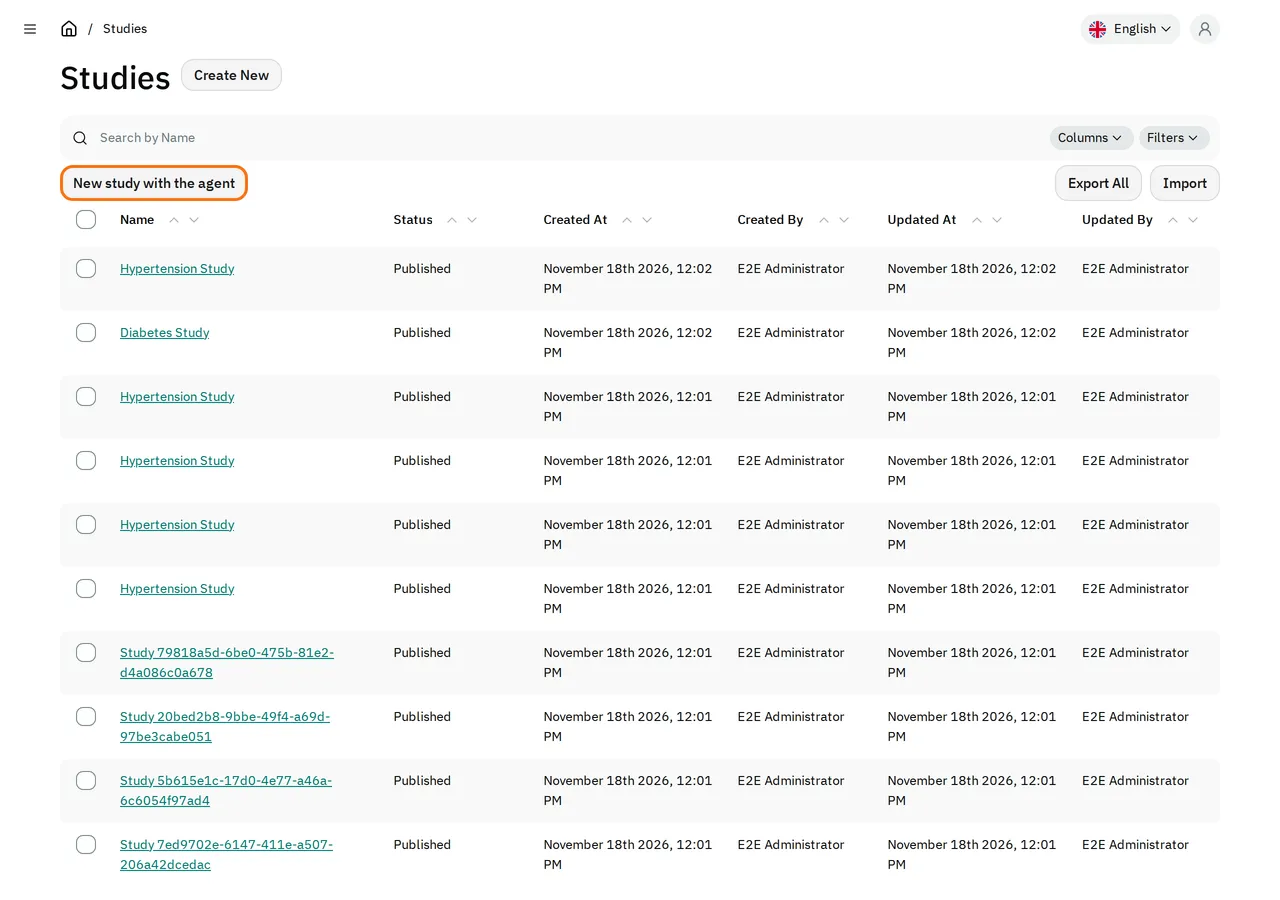
In the admin, open Studies. Select New study with the agent.
-
Select Attach a PDF, and choose the study’s paper CRF. The PDF must have a text layer: the agent cannot read a scan.
-
In Notes, type what the paper does not say, such as the number of participants and the planned dates.
-
Select the study’s Sponsors, CROs and Facility Sites.
-
In Model, select Choose a model, then select the model that the agent uses. After your first conversation, the button shows the model that you used last.
-
Select Start.
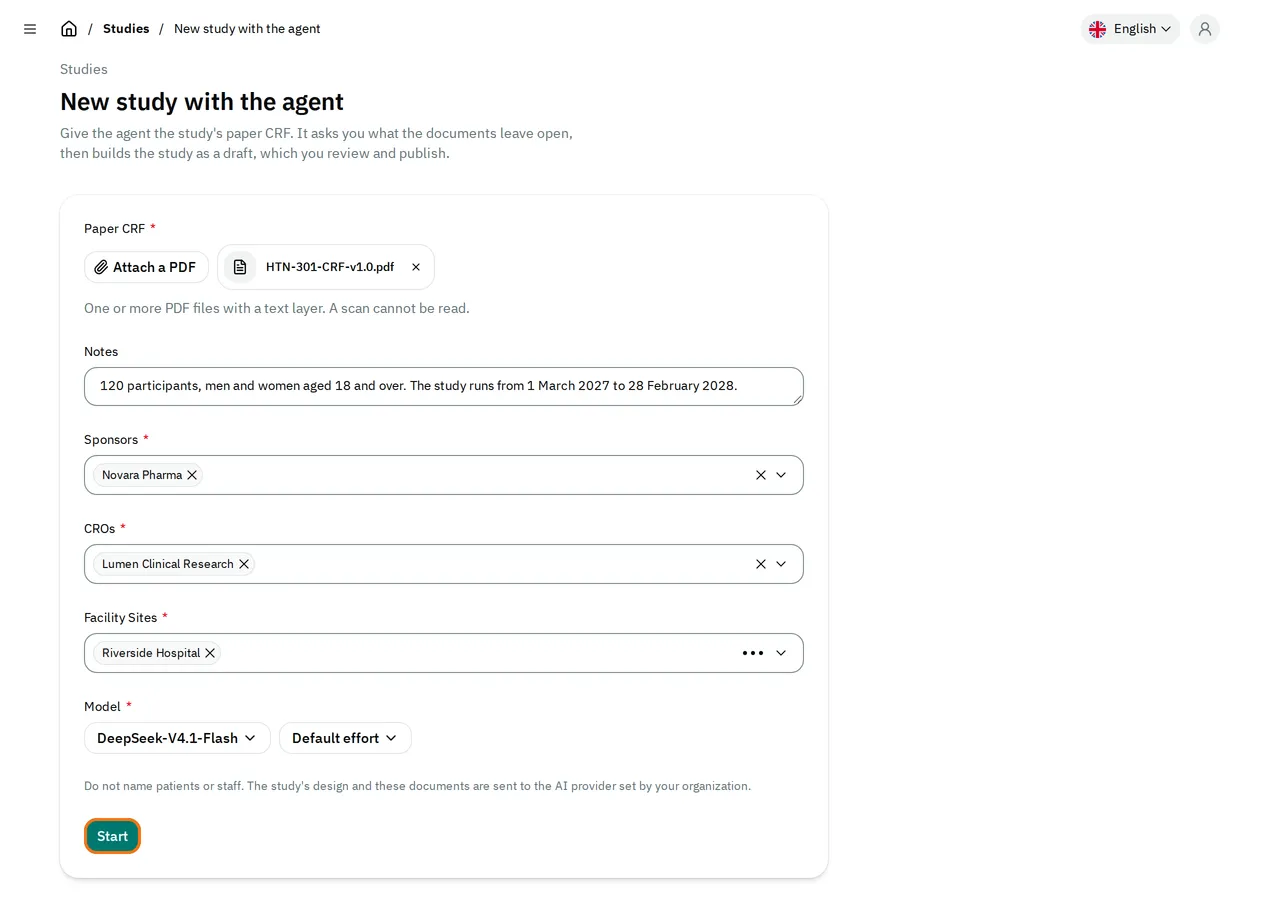
The admin creates the study as a draft and opens its Agent tab, where the agent reads the paper CRF.
Answer the agent’s questions
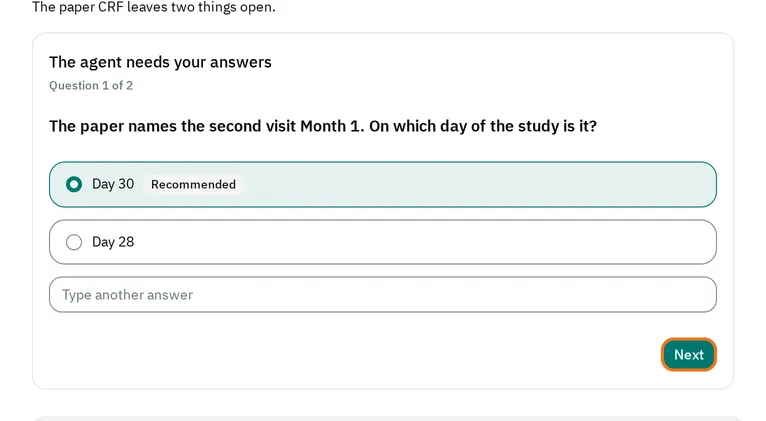
Section titled “Answer the agent’s questions”The agent asks you what the documents leave open, one question at a time.
-
Keep the first answer, which the agent recommends, or select another one. To give an answer of your own, type it in Type another answer.
-
Select Next.
-
After the last question, select Send answers.
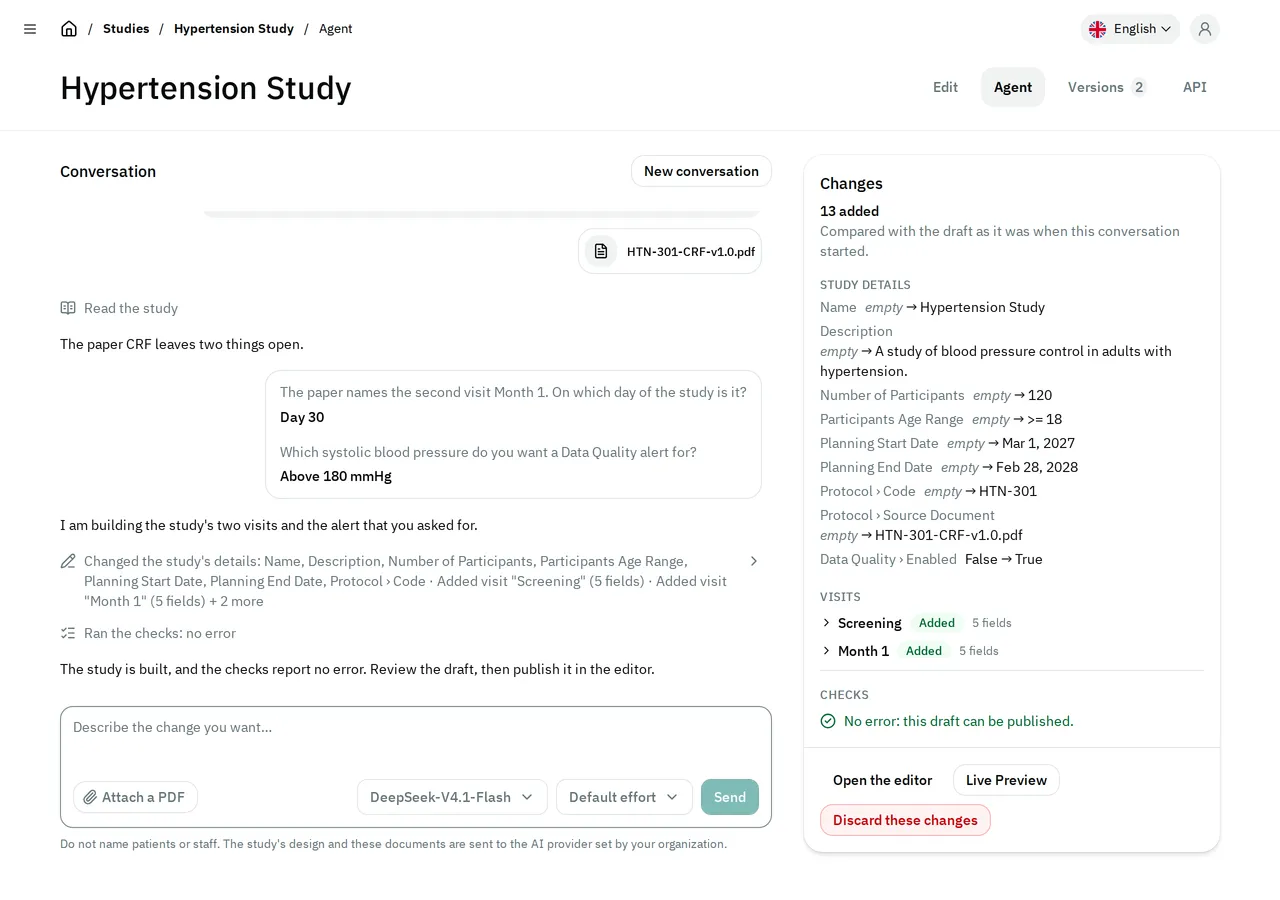
The agent builds the visits, their forms and fields, and the Data Quality rules. It also runs the checks that the admin runs when you publish, and corrects what they report. The page shows each step, and the agent says what it built when it has finished.
Change a study
Section titled “Change a study”-
In the admin, open Studies. Open the study.
-
Select the Agent tab.
-
Next to Send, check the model that the agent uses: it is the model of your last conversation. If the button shows Choose a model, select it, then select a model.
-
Describe the change you want. If the change comes from an updated CRF, select Attach a PDF and choose it.
-
Select Send.
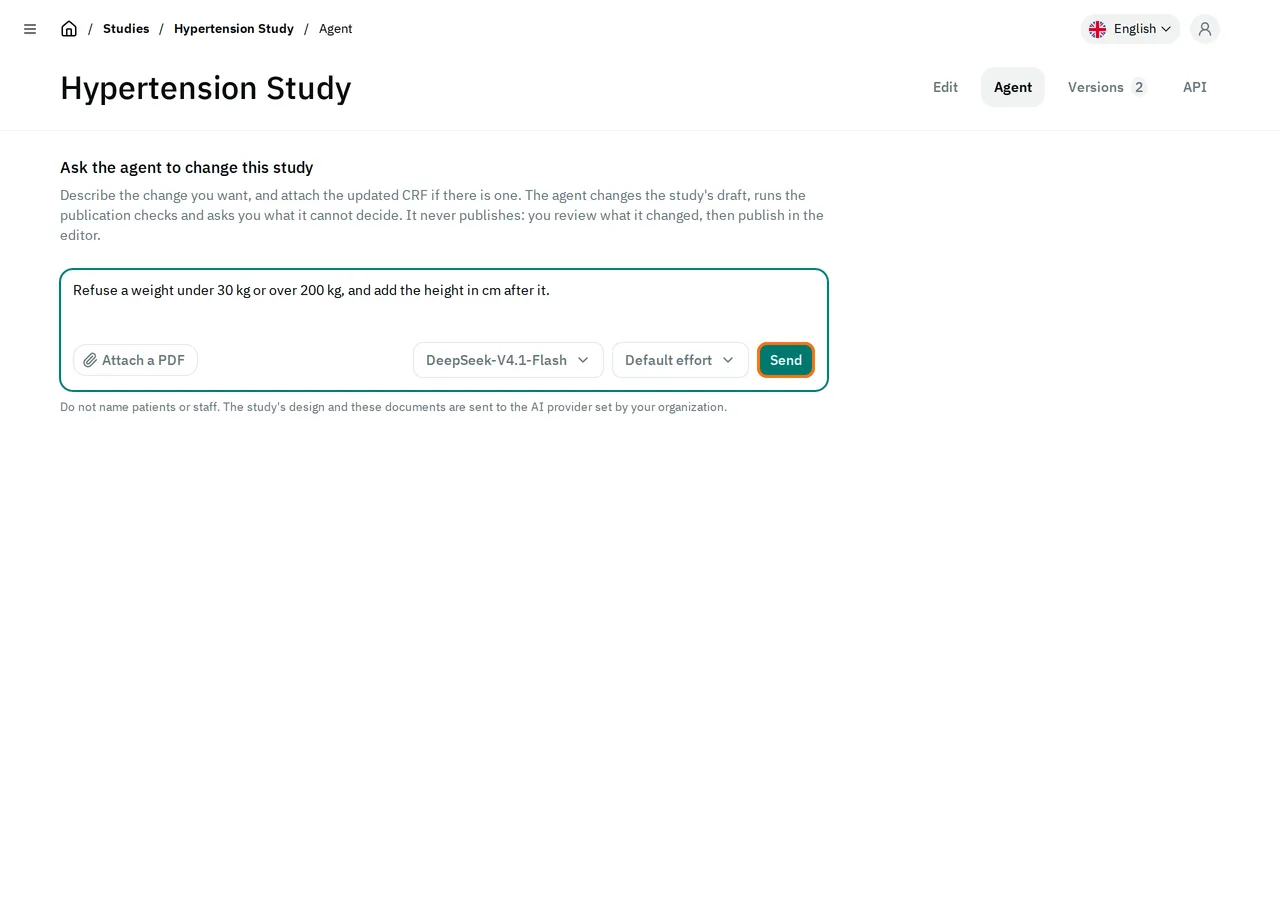
The agent changes the draft, and asks you its questions if it has any. To ask for more, write to it again.
Change the model or its reasoning effort
Section titled “Change the model or its reasoning effort”The agent can use the models that each AI provider of the AI page gives its key. The menu shows the current models of each provider: the newest of each family. For an older model, select More models under its provider.
- In a conversation, select the model’s name next to Send, then select another model. The agent uses that model from its next step.
- For a new study, select the model’s name in Model, then select another model. Do this before you select Start.
- To change how much the model reasons before it answers, select the effort next to the model’s name, then select another effort. The button shows Default effort until you select one. A model that has no effort to select does not show this menu.
If an AI provider does not answer, select a model of another provider. Then select Retry.
Review the changes
Section titled “Review the changes”Next to the conversation, Changes lists each visit, form, field and rule that the conversation added, changed or removed. It compares the draft with the draft as it was when the conversation started. A changed entry shows each value before and after.
- Under Checks, the admin says if the draft can be published. If it cannot, select Ask the agent to fix these.
- For a published study, select Count the saved answers these changes touch. Each field then shows how many saved answers it has, and how many of them the eCRF would no longer show or no longer accept.
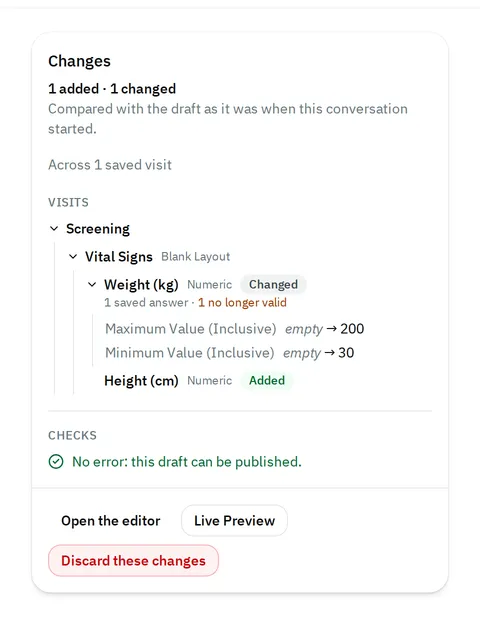
To correct the draft yourself, select Open the editor. When the draft is right, publish it: see Publish a study change. Until you publish, the eCRF does not show the changes.
Discard the changes
Section titled “Discard the changes”-
Under Changes, select Discard these changes.
-
Select Discard the changes.
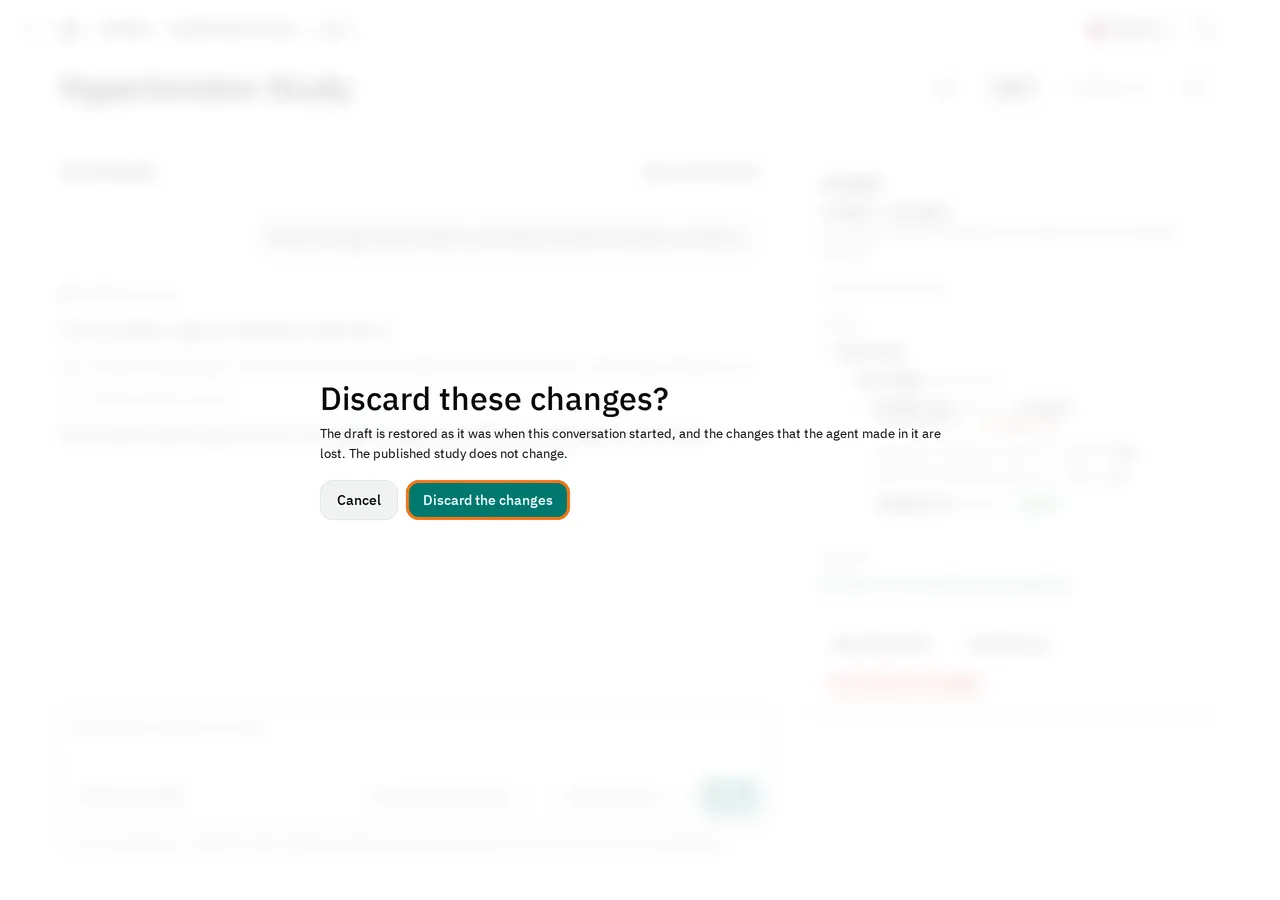
The admin restores the draft as it was when the conversation started. The published study does not change. The conversation shows that the changes were discarded, and the agent is told so when you write to it again.
Stop the agent, and resume
Section titled “Stop the agent, and resume”The agent works only while its page is open. If you close the page, the agent finishes its step and stops.
- To stop the agent yourself, select Stop.
- To let it continue, open the Agent tab and select Resume.
- To start again from the draft as it is now, select New conversation.
Avoid these mistakes
Section titled “Avoid these mistakes”- Naming a patient or a member of staff in a message, a note or a document. The AI provider receives what you write and attach.
- Publishing a draft only because the checks report no error. The checks do not compare the draft with the paper CRF, and the agent can leave a page out. Read its last message, and compare the draft with the paper.
If you cannot use the agent
Section titled “If you cannot use the agent”- You do not see New study with the agent or the Agent tab: only a System Administrator does.
- The page shows No AI provider is set for the agent. Add a provider and its key in the AI settings. A System Administrator adds them on the AI page.
- You wrote your message or filled in the form, and you still cannot select Send or Start: no model is selected. Select a model first.
- The page shows The models could not be listed. Try again in a moment. Reload the page.
- Under a provider, the menu of models shows Its models could not be listed. That provider did not answer. Select a model of another provider, or reload the page later.
- Under a provider, the menu of models shows This provider lists no model that the agent can run on. Select a model of another provider. If no provider has one, a System Administrator adds another provider on the AI page.
- A step shows The chosen model is no longer available. Choose another model. Select another model, then select Retry.
- The page shows A PDF of this message has no text to read: it is a scan, or it is protected. Attach a PDF with a text layer.
- A step shows Another administrator has the study open in the editor. Ask them to close the study. Then write to the agent again.
- The changes show This study was also changed outside this conversation since it started. Those changes are included below, and Discard is not available. To return to an earlier draft, restore it on the Versions tab.